Uncover and Reclaim SSD Space: A Guide to Windows' Hidden Driver Cache
Have you ever noticed your SSD slowly filling up despite your best cleanup efforts? There's a stealthy folder hidden deep in your system drive that Windows has been silently hoarding old drivers in since day one. This cache isn't shown in the standard storage breakdown, and typical disk cleanup tools overlook it. Below, we answer the most common questions about this hidden driver storage and show you exactly how to free up valuable SSD space safely.
What exactly is this hidden driver cache?
Windows maintains a special folder called DriverStore (located at C:\Windows\System32\DriverStore\FileRepository) that stores all driver packages ever installed on your PC. Whenever you connect a new device, update a driver, or install hardware, Windows saves the associated files here. Over time, this repository grows as old, unused, and superseded driver versions accumulate. While the folder is essential for system stability (it provides a fallback if a new driver fails), it can become a massive storage hog—sometimes exceeding 10–20 GB—without you ever noticing.
Why does Windows keep old drivers instead of deleting them?
Microsoft designed the DriverStore as a safety net. If a driver update causes problems—like a blue screen, device malfunction, or performance issues—Windows can automatically revert to a previous working version using the stored package. This fail-safe prevents you from being left with a nonfunctional device. The system also retains drivers for devices you might have plugged in only once, assuming you could use them again. Unfortunately, the algorithm for purging old drivers is conservative, and automatic cleanup (like the built-in Disk Cleanup tool) rarely touches this folder, allowing it to bloat unchecked.
How much SSD space can I realistically recover?
The amount of reclaimable space varies based on your PC's age and how frequently you update drivers. On a typical one- or two-year-old system, you might find 5–15 GB of outdated or duplicate driver files. For power users who frequently install graphics card, printer, or motherboard drivers, the cache can exceed 20 GB. Beginners often recover 3–8 GB. Because SSDs have limited write endurance and are more expensive per gigabyte than hard drives, every GB counts. Freeing up even 5 GB can improve available space for applications and reduce unnecessary wear from constant writes to a nearly full drive.
How can I check how large my DriverStore is?
To see the size of the hidden cache, open a Command Prompt as Administrator (right-click Start, select “Command Prompt (Admin)” or “Windows PowerShell (Admin)”). Type the following command and press Enter:dism /online /Get-FeatureInfo /FeatureName:Microsoft-Windows-Client-Drivers
The output shows the feature state but not the exact size. For a quick folder size check, navigate to C:\Windows\System32\DriverStore, right-click the FileRepository folder, select Properties, and note the size on the General tab. Alternatively, you can use the command:dir C:\Windows\System32\DriverStore\FileRepository /s /a /q | find "File(s)"
This displays total files and bytes. Do not delete anything manually yet—we'll show you the safe method next.
What is the safe way to delete old drivers from DriverStore?
The only recommended method uses the built-in Driver Cleanup tool via DISM (Deployment Imaging Servicing and Management). Follow these steps precisely:
- Open Command Prompt as Administrator.
- Run
dism /online /Get-Driversto list all driver packages. Note the Published Name (e.g.,oem0.inf). - Identify drivers you want to remove: look for very old dates or those from devices you no longer use (like an old printer). Never delete critical system drivers (e.g., storage, display, network).
- To remove a driver, use:
dism /online /Remove-Driver /DriverName:oem0.inf(replace with your driver's published name). - Restart your PC to finalize.
This process safely unpublishes and deletes the driver package without affecting currently installed stable drivers. Do not manually delete the FileRepository folder—that can break your system.
Are there any third-party tools to automate cleaning?
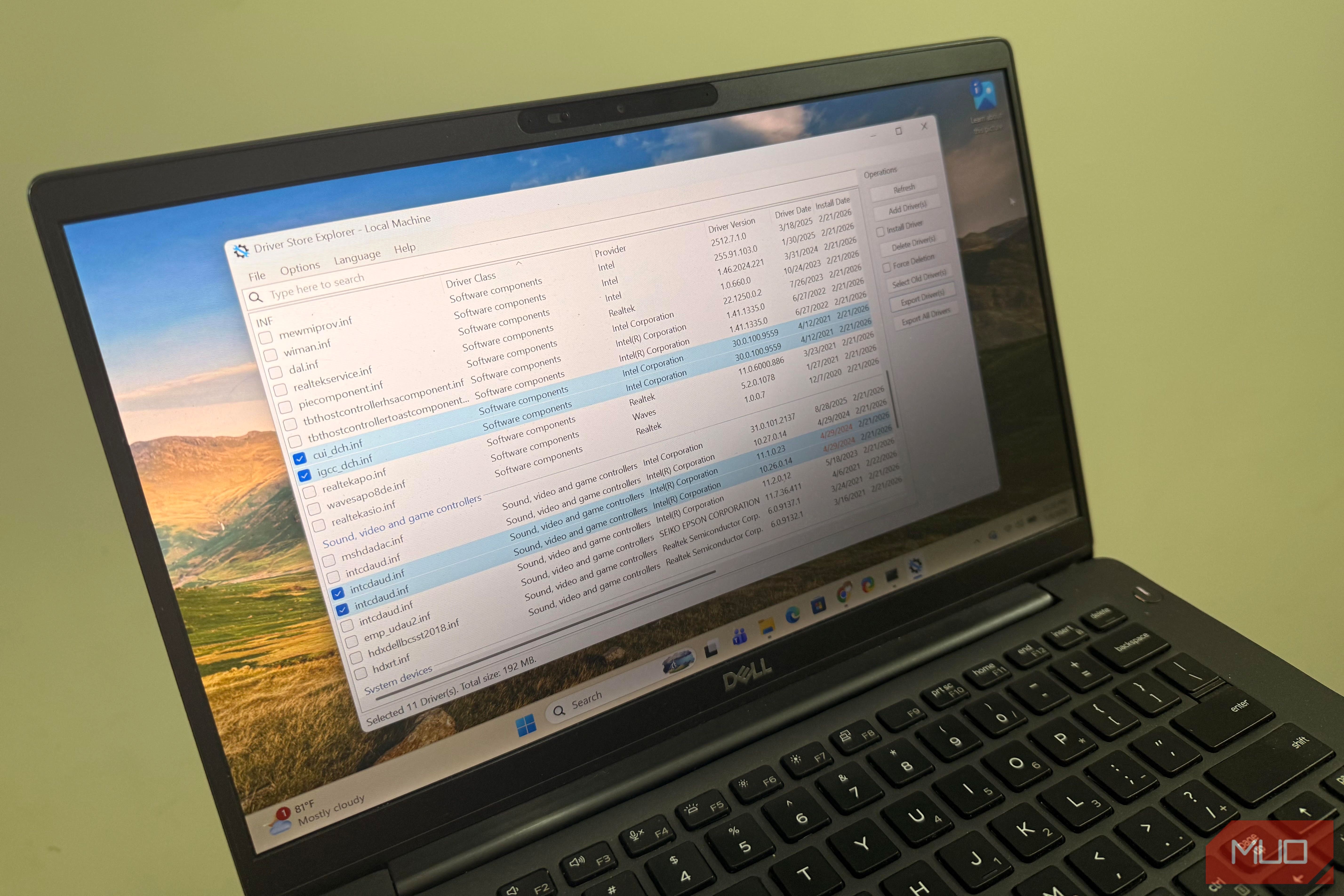
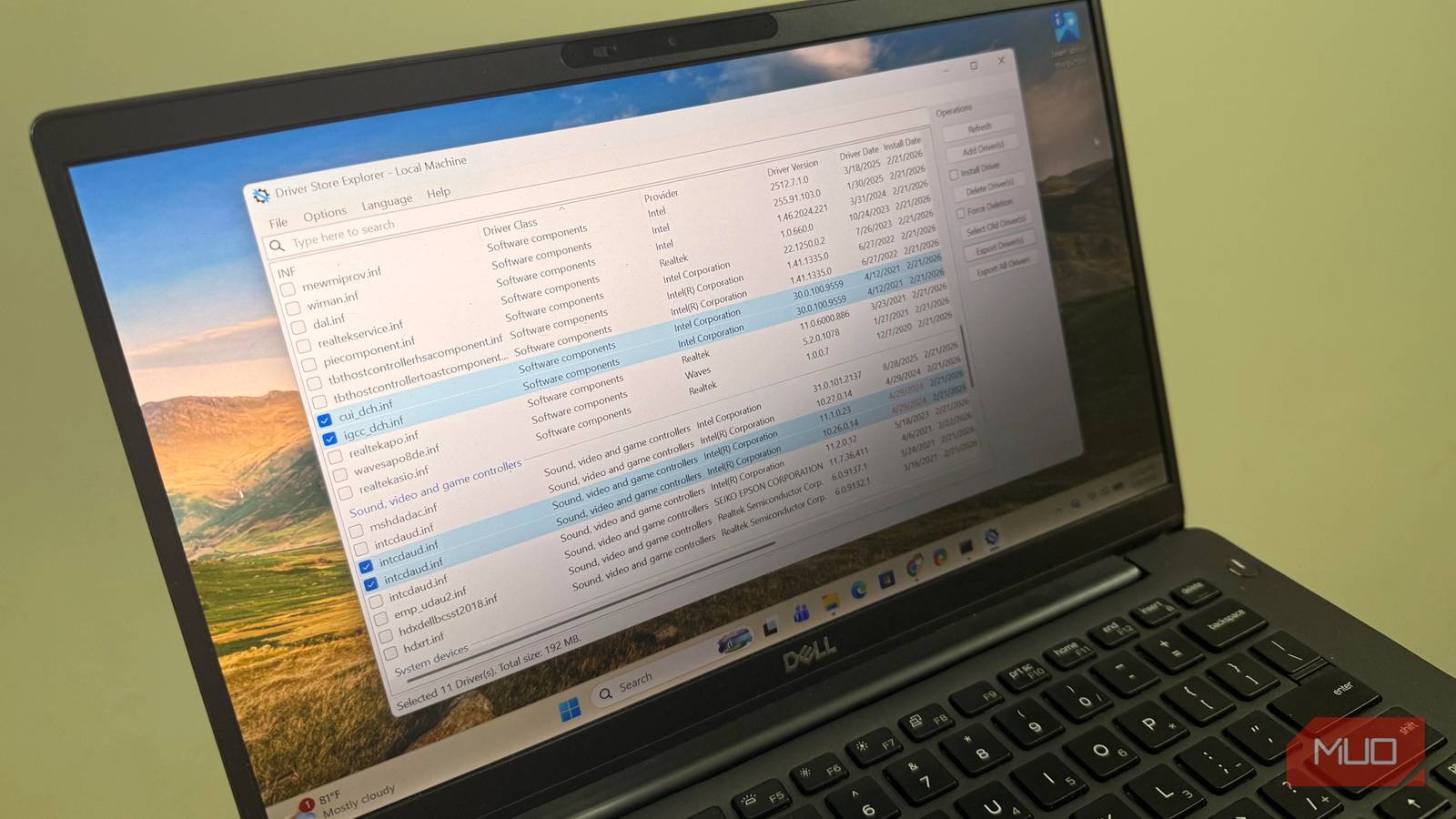
Yes, but use them with caution. Popular tools like DriverStore Explorer (RAPR) provide a GUI to list and delete old drivers safely. It shows you the driver name, version, date, and whether it's currently in use. You can multiselect outdated packages and delete them with one click. However, always review each entry before deletion. Free tools like Wise Care 365 or CCleaner (in its Driver Cleaner module) also offer automatic scanning, but they may not be as thorough or safe as the manual DISM method. For most users, sticking to DISM or a reputable open-source GUI like DriverStore Explorer is best.
How can I prevent the driver cache from bloating again?
While you can't stop Windows from storing new drivers entirely, you can manage the cache proactively. After each major driver update—especially for graphics cards—run the DISM removal command to delete the old driver package. You can also set Windows to only store drivers for devices that are currently plugged in by modifying Group Policy (not available in Windows Home) or by using the built-in PnPUtil command to delete outdated ones regularly. Another tip: avoid installing unnecessary manufacturer bloatware that bundles extra drivers; stick to clean drivers from the hardware vendor's site. Periodically check the DriverStore size every few months and clean it when it grows beyond a few gigabytes.