Unlock the Full Potential of Your Motorola Razr Fold: A Guide to Using Only the Cover Screen
Introduction
When Motorola launched the Razr Fold in 2026, it quickly became one of the most talked-about book-style foldables. Many users have discovered that the external cover screen is so capable that it can handle most daily tasks without needing to open the main folding display. This guide will walk you through how to leverage that cover screen to its fullest—saving battery, reducing wear on the hinge, and making your interactions faster. Whether you're a new owner or looking to optimize your experience, these steps will help you rely on the smaller screen more often.
What You Need
- A Motorola Razr Fold with the latest software update installed.
- Your Google account signed in to access apps and services.
- A stable internet connection for any app downloads or updates.
- A few minutes to customize settings.
Step-by-Step Guide
Step 1: Understand the Cover Screen Capabilities
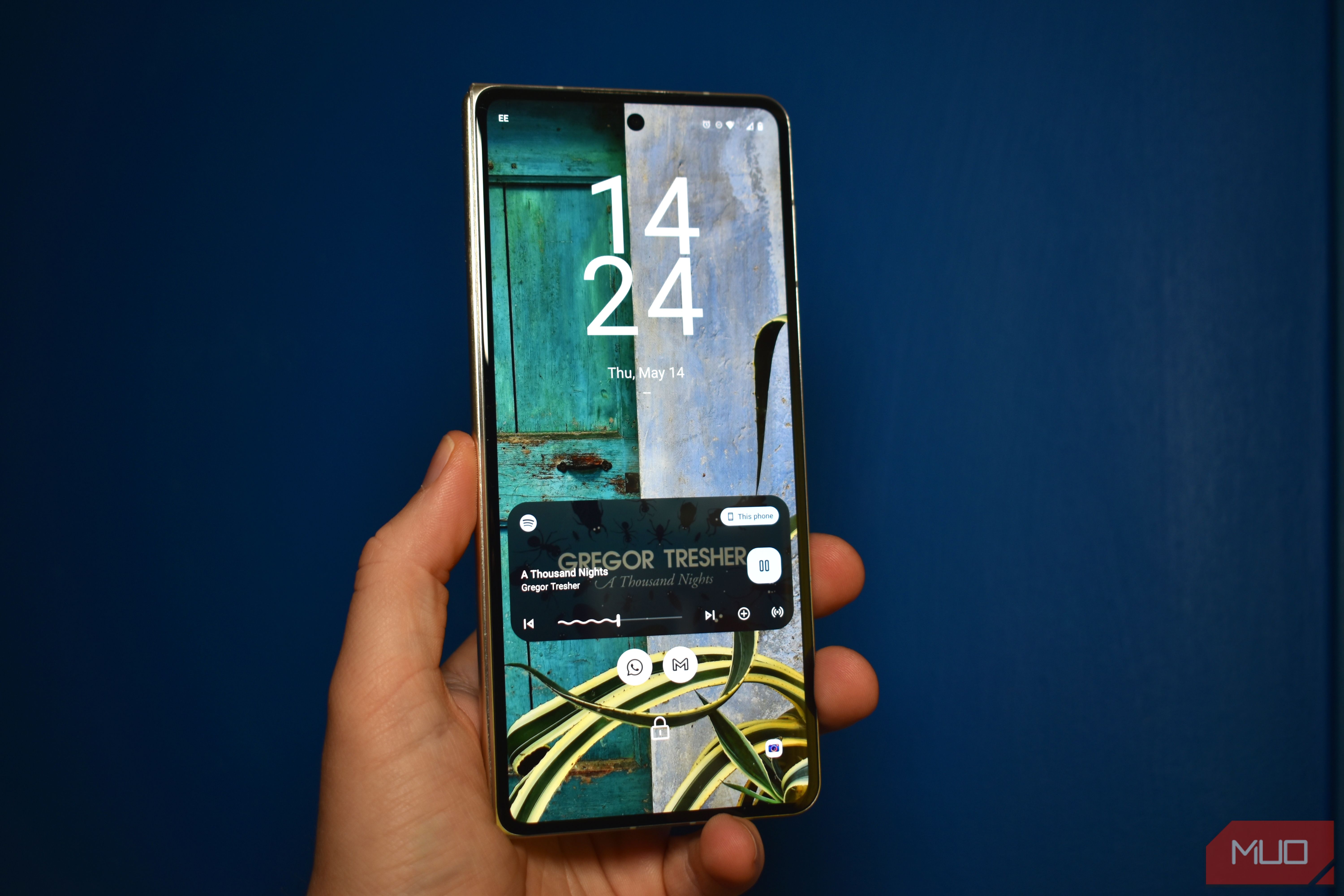
Before diving into settings, know what your cover screen can do. The Razr Fold’s external display runs a tailored interface that supports quick notifications, app shortcuts, camera viewfinder, and even full app use—though some apps may need minimal adaptation. It’s not just for glancing; it’s a functional second screen.
Step 2: Enable and Customize the Cover Screen Launcher
Your phone comes with a dedicated cover screen launcher. Go to Settings → Display → Cover screen. Here you can choose whether to mirror your home screen or use a simplified grid. For maximum utility, select the “App shortcuts” option and add your most-used apps—like messaging, email, maps, or music. You can also rearrange these shortcuts by dragging them.
Step 3: Set Up Quick Reply for Notifications
One of the best features is replying to messages without opening the phone. Ensure quick reply is turned on: in cover screen settings, toggle “Quick reply for notifications” to on. Now, when a notification arrives, you can swipe it to see a text field and send a response using voice-to-text or a small keyboard. This saves time and keeps you focused.
Step 4: Use the Camera with the Cover Screen
The cover screen doubles as a viewfinder when taking selfies with the main cameras. Open the camera app from the cover screen shortcuts, then use the volume buttons to snap a photo. You can also switch to video or portrait mode. The quality is identical to using the main display, but you get the advantage of a more stable grip.
Step 5: Launch Full Apps from the Cover Screen
Some apps run fully on the cover screen. While not all are optimized, many popular ones work well. To add a full app, go to Cover screen → App shortcuts → Add app. Apps like WhatsApp, Google Maps, Spotify, and Twitter display acceptably. For apps that don’t resize, you can still get essential info at a glance. The key is to test and keep only the ones that function smoothly.
Step 6: Manage Notifications Efficiently
Keep your alerts clutter-free. In Settings → Notifications, customize app notifications so that only important ones show on the cover screen. Disable unnecessary alerts from games or social media. You can also swipe left on a notification to open its parent app if needed. This way, the cover screen remains a clean, productive tool.
Step 7: Extend Battery Life by Staying Closed
Using the cover screen consumes less power than the large folding display. To maximize battery, keep the phone closed as much as possible. You can also enable Battery saver mode for the cover screen when the battery drops below 30%. Additionally, reduce screen timeout to 15 seconds for quick glances.
Step 8: Use Voice Commands and Routines
Google Assistant works perfectly from the cover screen. Squeeze the sides or say “Hey Google” to set reminders, send texts, or control smart home devices. Combine this with a routine like “Good morning” to get weather and calendar updates without touching the screen. This makes the cover screen a true hands-free hub.
Step 9: Adjust Display Brightness and Auto-Rotate
The cover screen brightness automatically adjusts, but you can manually fine-tune it for outdoor visibility. Swipe down from the top of the cover screen to access quick settings, then adjust the slider. Auto-rotate is not typically needed because the cover screen stays portrait, but you can lock it in settings to avoid accidental flips.
Step 10: Monitor and Maintain Screen Protection
Even though you're using the cover screen more, both displays benefit from care. Apply a screen protector specifically for the cover screen, and clean it regularly with a microfiber cloth. Avoid pressing too hard on the hinge area. If you notice any scratches, consider a tempered glass protector. This ensures long-term usability.
Tips for Getting the Most Out of Your Cover Screen
- Prioritize responsiveness: Use apps that load quickly on the smaller screen. Heavy games or video editors may still require the main display.
- Sync notifications: Ensure your apps all push notifications to the cover screen; for some, you may need to enable it in their individual settings.
- Use wireless charging more often—it’s easier with the cover screen facing up and avoids opening the phone just to charge.
- Explore widget customization: Some widgets (like weather or steps) display elegantly on the cover screen’s home panel.
- Update software regularly — Motorola often improves cover screen compatibility and introduces new features.
By following these steps, you’ll find that the Motorola Razr Fold’s cover screen is not just a gimmick—it’s a genuinely useful interface that can handle the majority of your daily interactions. You’ll save battery, prolong hinge life, and enjoy a more discreet phone experience. Give it a try and see how little you need to flip open your phone.