Aerion Email Client: A Step-by-Step Tutorial for Securing and Streamlining Your Desktop Inbox
Overview
If you manage multiple email accounts daily, a desktop email client can be a game-changer. Instead of juggling browser tabs for Gmail, Outlook, Proton Mail, and others, you get a unified, resource-light workspace. Aerion is an open-source, lightweight client that promises exactly that—with a clean interface, strong security credentials, and features like conversation threading and keyboard shortcuts.
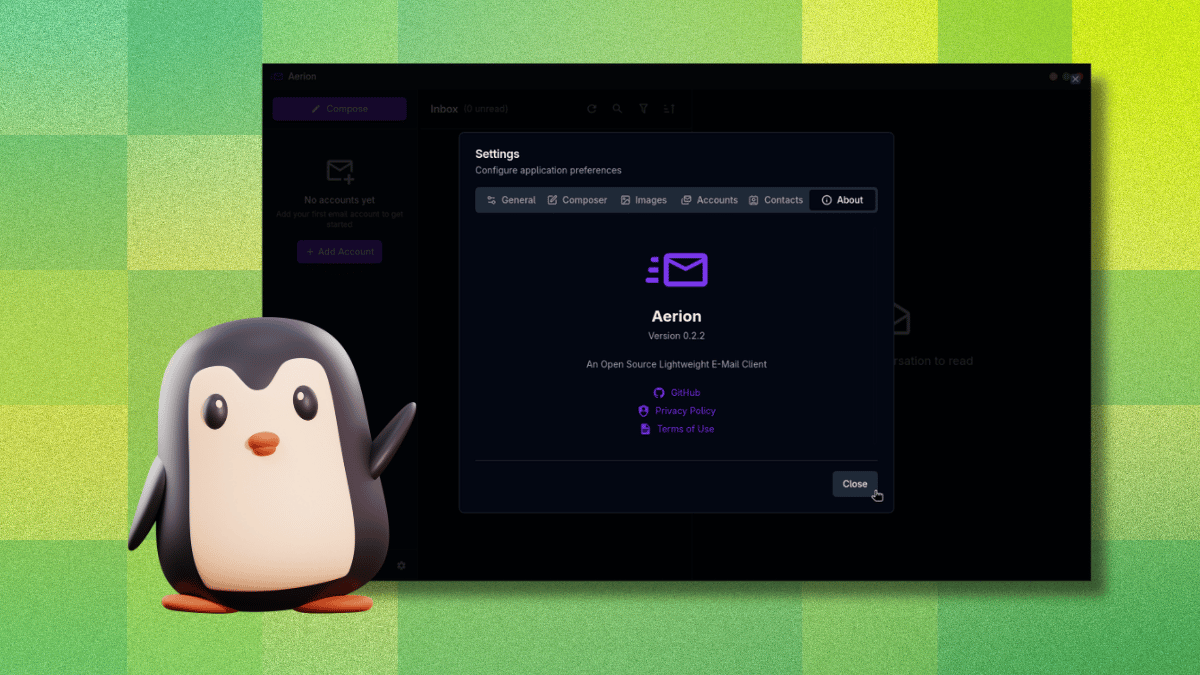
This tutorial will guide you through installing, configuring, and using Aerion, even if you're new to desktop email apps. We’ll cover essential prerequisites, step-by-step account setup, common pitfalls, and tips to get the most out of this pre-release software.
Note: Aerion uses Wails and Svelte under the hood (not Electron), which helps keep memory usage low. It holds a CASA Tier 2 certification (assessed by TAC Security under the Google App Defense Alliance), meaning its code has been verified against OWASP ASVS standards—a rare reassurance for an indie project.
Prerequisites
Before you start, ensure you have:
- Supported operating system: Linux, macOS, or Windows. Aerion is Linux-first but cross-platform builds are available.
- An email account with a supported provider. Currently Aerion works with Gmail, Microsoft 365/Outlook, Proton Mail (requires paid Proton Bridge), iCloud Mail, GMX Mail, and generic IMAP/SMTP. Yahoo, Fastmail, Zoho Mail, AOL Mail, and Mail.com are listed as untested but may work.
- Basic familiarity with downloading releases from GitHub (or using package managers).
- Optional: A CardDAV, Google, or Microsoft contact sync setup if you want to use the contact integration.
Step-by-Step Setup and Usage
1. Installing Aerion
Visit the official GitHub releases page and download the appropriate build for your OS. For example:
- On Linux, download the
.AppImageor.debfile. Make it executable (chmod +x Aerion-x86_64.AppImage) and run it. - On macOS, download the
.dmgand drag the app to your Applications folder. - On Windows, grab the
.exeinstaller.
Alternatively, if you’re on Arch Linux, you can install from the AUR: yay -S aerion. Once installed, launch Aerion—you’ll be greeted by a clean, minimal interface.
2. Adding an Email Account
Click the + icon or select Add Email Account from the sidebar. A modal window will appear. Choose your provider (e.g., Gmail). Aerion will open your default browser for OAuth authentication—a secure method that never exposes your password to the app.
- Log into your email account and grant permissions.
- After authorization, the browser redirects you back to Aerion. Your account appears in the sidebar.
- Repeat for additional accounts. Aerion supports multiple accounts simultaneously.
Pro tip: If you accidentally click outside the “Add Email Account” window before completing the flow, the modal closes and discards your progress—no confirmation dialog. To avoid frustration, keep your mouse still or use keyboard navigation (see Keyboard Shortcuts).
3. Configuring Account Settings
Once added, right-click the account icon to access settings:
- Sync frequency: Choose how often Aerion fetches new mail (default: every 5 minutes).
- Notification preferences: Enable/disable desktop alerts for new messages.
- Signature: Set a default signature using the built-in WYSIWYG editor (powered by TipTap).
For IMAP/SMTP accounts (like generic providers), you’ll need to manually enter server details. Find these in your email provider’s support documentation (e.g., imap.example.com, port 993, SSL).
4. Navigating the Interface
Aerion’s layout is divided into:
- Left sidebar: Lists your accounts and folders (Inbox, Sent, Drafts, etc.).
- Middle pane: Shows message list with conversation threading enabled by default.
- Right pane: Displays the selected email content.
You can switch between light and dark themes via the gear icon (Settings > Appearance).

5. Keyboard Shortcuts (vim-style)
For power users, Aerion includes vim-inspired shortcuts:
- j/k – Move up/down in the message list.
- o – Open selected email.
- r – Reply to the open email.
- a – Reply all.
- f – Forward.
- # – Delete the message.
- / – Search.
- Esc – Cancel or close pane.
Press ? to view the full shortcut list inside the app.
6. Composing Emails
Click Compose (or press c) to open the editor. Aerion provides a WYSIWYG editor (What You See Is What You Get) with formatting options like bold, italic, lists, and link insertion. You can also switch to plain text mode by clicking the source icon.
When composing, you can attach files via the paperclip icon. Contact auto-complete works if you’ve synced your contacts (via CardDAV, Google, or Microsoft).
7. Syncing Contacts
Go to Settings > Accounts > [Your Account] > Contact Sync. You can add a CardDAV URL (for Nextcloud or similar), or sign in with Google/Microsoft to pull your address book. This makes composing and addressing emails faster.
Common Mistakes
Here are pitfalls to avoid when using Aerion:
- Accidentally closing the Add Account window: As noted, clicking outside the modal while adding an account will discard all progress. Always complete the OAuth flow without clicking away. If you do lose progress, just restart the process.
- Expecting full stability: Aerion is pre-release software. You may encounter occasional crashes or sync delays. Keep copies of important emails in your webmail as a backup.
- Ignoring unsupported provider behavior: Providers like Yahoo or Mail.com are listed as “untested.” They may work with generic IMAP/SMTP, but expect quirks. Stick to supported providers for a smooth experience.
- Not updating to the latest version: The development team releases frequent bug fixes. Check the GitHub releases page or enable automatic updates (if available) to stay current.
- Forgetting to enable notifications: If you don’t see desktop alerts, check both the system notification settings and Aerion’s per-account notification toggle.
Summary
Aerion brings a refreshing, secure, and lightweight option to the desktop email client landscape. Its OAuth-first approach, CASA Tier 2 certification, and vim-style shortcuts make it ideal for productivity-focused users who value security and efficiency. While still in pre-release, the core features work reliably on supported providers. This tutorial has walked you through installation, account setup, configuration, and common pitfalls. With these steps, you’re ready to make Aerion your unified email hub.