Mastering Codex CLI for Python Development: A Practical Guide
Overview
Codex CLI is OpenAI's command-line interface that brings the power of GPT-based code generation directly into your terminal. When paired with Python projects, it can accelerate development by suggesting code snippets, refactoring functions, and even planning complex features through a unique Plan mode. This tutorial will walk you through installing, configuring, and effectively using Codex CLI to enhance your Python workflow. By the end, you'll be able to leverage iterative prompting to refine features and review changes before they land—boosting both productivity and code quality.
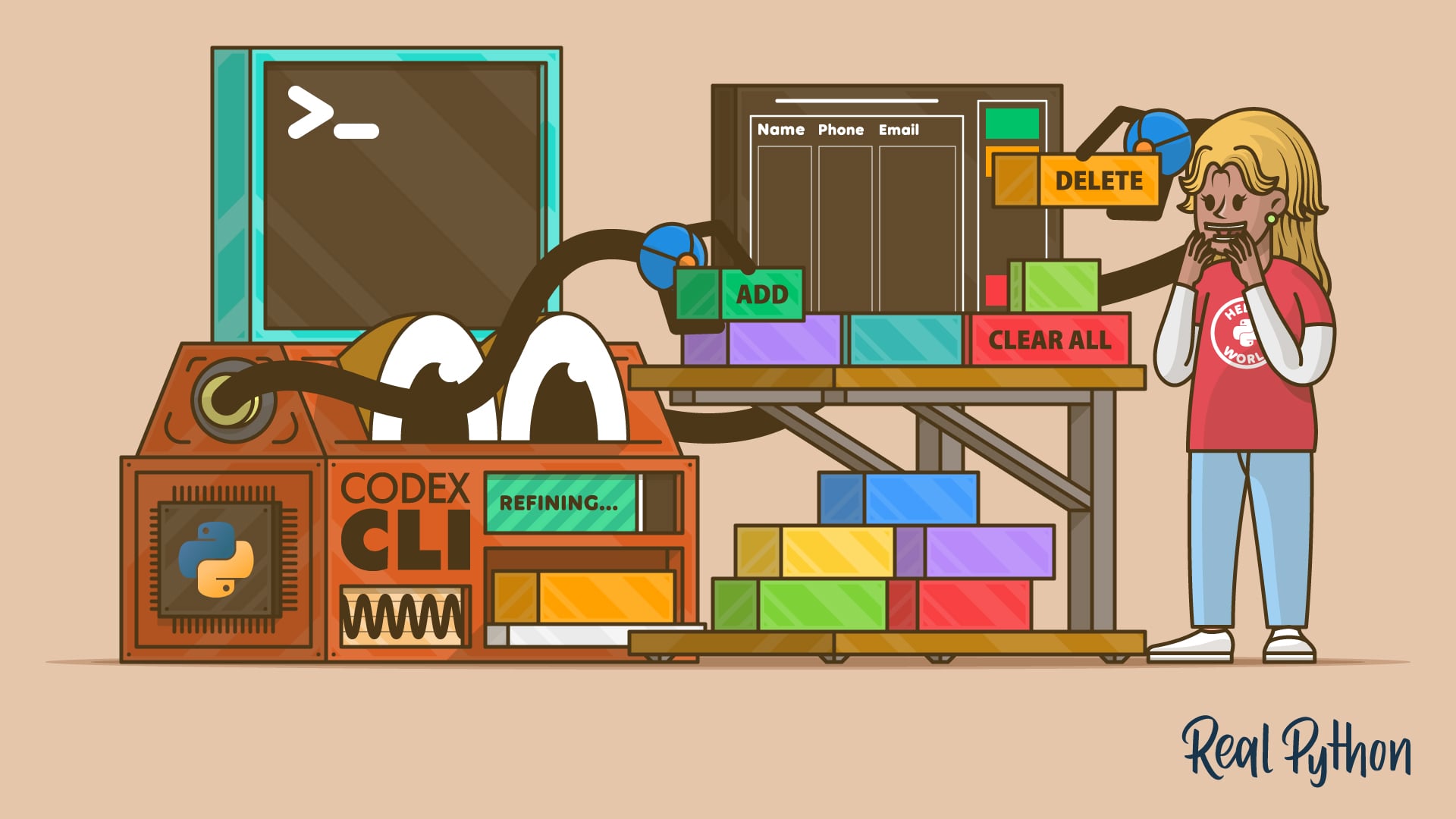
Whether you're a solo developer or part of a team, mastering Codex CLI can transform how you approach coding tasks. Let's dive in.
Prerequisites
Before you begin, ensure you have the following:
- Python 3.8 or later installed on your system.
- pip package manager (usually included with Python).
- An OpenAI API key with access to GPT models (sign up at platform.openai.com).
- Node.js 16+ (Codex CLI also requires a local runtime; Node.js is used for the CLI tool itself).
- A terminal emulator (Command Prompt, PowerShell, or any Unix shell).
If you meet these requirements, you're ready to proceed.
Step-by-Step Guide
1. Install Codex CLI
Codex CLI is distributed via npm. Open your terminal and run:
npm install -g @openai/codex-cliThis installs the CLI tool globally. Verify the installation:
codex --versionYou should see a version number like 0.1.0.
2. Configure Codex CLI
After installation, you need to set your OpenAI API key. Run the configuration command:
codex configureFollow the prompts to enter your API key. Alternatively, you can set it as an environment variable:
export OPENAI_API_KEY='your-api-key-here'This is useful for CI/CD pipelines. The CLI will store the key in a local config file for subsequent sessions.
3. Understand the Modes: Quick vs. Plan
Codex CLI operates in two primary modes:
- Quick Mode: Generates code instantly based on your prompt. Good for small snippets.
- Plan Mode: Reviews changes before applying them. This is critical for complex features where you want to inspect the proposed code before it modifies your files.
To switch between modes, use the --mode flag. For example:
codex --mode quick "add docstring to function calculate_average"
codex --mode plan "implement a REST API endpoint for user login"
Plan mode will prompt you with a diff-like preview and ask for confirmation before applying.
4. Use Plan Mode to Review Changes
Plan mode is especially useful when you want to ensure proposed changes align with your project's architecture. Here's how to use it effectively:
- Start with a clear prompt that defines the feature or fix. For example: "Add error handling for database connection in db_utils.py".
- Execute in Plan mode:
codex --mode plan "Add error handling for database connection in db_utils.py"The CLI will analyze your codebase and generate a plan. It will display the changes line-by-line, highlighting additions and deletions.
- Review the diff carefully. If satisfied, confirm by typing
yes. Otherwise, you can reject or refine the prompt. - After confirmation, Codex applies the changes to your files. Use your version control system to commit them.
This workflow reduces the risk of blindly accepting AI-generated code that might introduce subtle bugs or style inconsistencies.
5. Refine Features Through Iterative Prompting
One of the most powerful aspects of Codex CLI is the ability to refine code iteratively. Instead of asking for a complete solution in one go, you can build up features step by step.

Example: Building a Calculator CLI
Start with a basic prompt:
codex --mode quick "create a Python calculator CLI that supports add, subtract, multiply, divide"Codex will generate a simple script. After reviewing, you can refine by adding error handling:
codex --mode plan "add try-except blocks for division by zero in calculator.py"Then maybe add a history feature:
codex --mode plan "add a history feature that stores last 10 calculations in calculator.py"Each iteration builds on the previous one. You can use --mode plan to preview each change before it lands.
For complex features, break your prompt into smaller, logical steps. This gives you more control and helps the model stay focused.
Common Mistakes
Even experienced developers can trip up when using Codex CLI. Here are pitfalls to avoid:
- Vague prompts: Telling Codex to "make it better" yields unpredictable results. Always be specific about the file, function, or behavior you want to change.
- Skipping Plan mode for complex changes: Quick mode is convenient, but for multi-file edits or critical logic, always use Plan mode. Otherwise, you might overwrite important code without review.
- Not configuring the API key correctly: If you get authentication errors, double-check your environment variable or config file. Use
codex configureagain if needed. - Ignoring project context: Codex CLI works best when it understands your project structure. Run it from the root of your Python project so it can read relevant imports and patterns.
- Over-relying on one-shot generation: For complex features, iterative prompting yields higher quality than asking for everything at once. Break down the task.
- Forgetting to commit before applying changes: Always commit your current state to version control before using Plan mode. That way, you can easily revert if the AI makes an unwanted change.
Summary
Codex CLI is a powerful ally for Python developers, streamlining everything from small code snippets to major feature implementations. By following this guide, you've learned how to install and configure the tool, switch between Quick and Plan modes, review changes before they land, and iterate on features using precise prompts. The key takeaways are: use Plan mode for critical edits, refine prompts iteratively to build complex functionality, and always maintain version control hygiene. With these practices, Codex CLI can significantly boost your productivity while keeping code quality high.